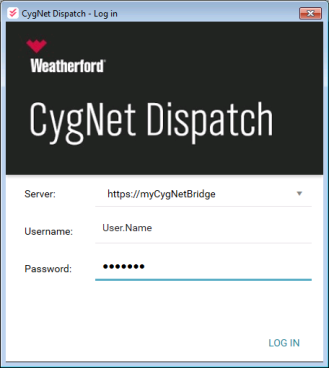
- Click SYNC to proceed with synchronizing your data with the server.
- Click EXIT to close the application and sync at another time.
CygNet Dispatch accesses measurement data in an FMS service via an instance of CygNet Bridge, in order to integrate job results with measurement data values. The secure connection via CygNet Bridge allows CygNet Dispatch to manage jobs to gather and coordinate the field information that could potentially affect production data values in your CygNet Measurement installation, and share that information with an FMS service.
Install CygNet Dispatch directly on job and administrative computers used to manage a variety of jobs and collect field data. CygNet Dispatch installations access CygNet data from outside of a CygNet installation by connecting to CygNet Bridge, which in turn provides a secure connection to a specified FMS service hosting your CygNet Measurement data.
CygNet Dispatch requires the installation of CygNet Bridge software, and must be selected as an option during the CygNet Bridge installation process.
See CygNet Bridge for general information about that component.
See CygNet Measurement for more information about CygNet Measurement functionality.
The default storage locations for your CygNet Dispatch files include the following folders on your client machine (if not changed during CygNet Bridge installation).
Note: Job Report and Late Job Report template files are stored in CygNet Measurement, in the C:\CygNet\Services\FMS\ReportTemplates\Samples folder by default. See Job Reports, Late Job Reports, and CygNet Measurement for more information.
Accomplish all prerequisite system preparation tasks and install CygNet Bridge before attempting to install CygNet Dispatch. After you have prepared your server and system to meet all requirements, and installed and configured CygNet Bridge, install CygNet Dispatch as follows.
To Install CygNet Dispatch
Once CygNet Dispatch is installed, you can use it to perform job scheduling and tracking tasks, yielding field information to enhance and interact with your measurement system data.
CygNet Dispatch can be updated any time the application is synchronized with the FMS service (via CygNet Bridge), and a newer version of the application is available on the host server. When you sync CygNet Dispatch, the software application version you are running is compared with the latest file version available on the host and, if a newer version is available, you will be notified and asked to allow an update. Select UPDATE to update immediately and sync with the FMS service, or select CANCEL to wait until a later time to update and sync.
On the host server, new CygNet Dispatch application files are made available as for most other CygNet client applications, using the latest version of the CygNet Host Updater utility. Manual file modifications may sometimes be a part of the process, depending on your system configuration. See CygNet Host Updater Utility for more information.

|
|
|

